顯示具有 Python::安裝與設定 標籤的文章。 顯示所有文章

2021年3月6日 星期六

Python3 環境設定(二)

設定目標:
  • 在 Windows 10 上安裝 Python 3.9
  • 在 Windows 10 上安裝 VSCode--請參考這一篇
  • 在 Windows 10 上使用 VSCode 做為 Python IDE 環境
快速安裝流程:
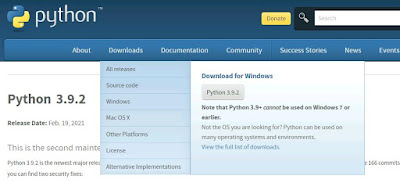
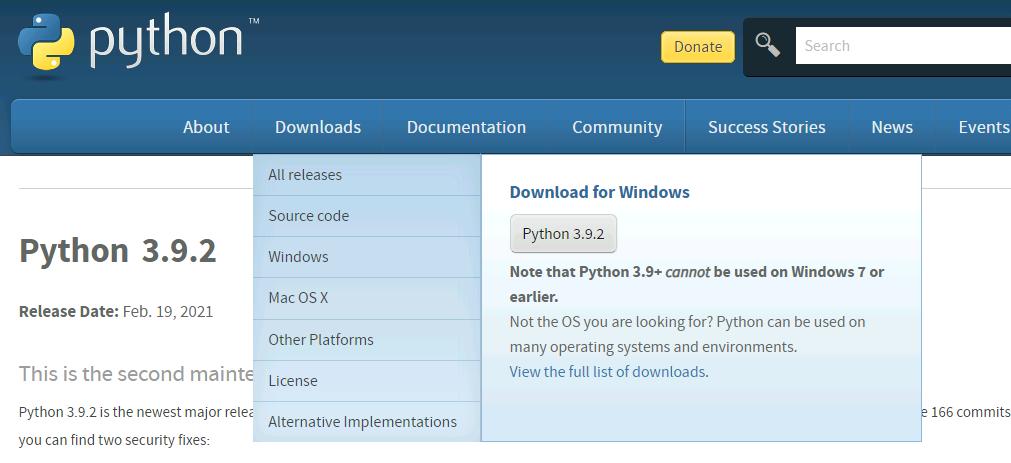
  1. Python 官網下載最新版本安裝檔案
  2. 執行安裝檔案!選擇第一項 Install Now 即可!下方兩個選項可勾選!
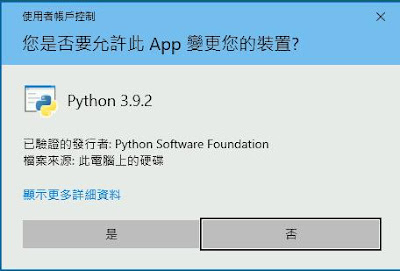
  3. 同意變更裝置!
  4. 安裝流程無痛進行!
  5. 安裝完成!選擇程式檔案名稱長度的限制!
  6. 同意裝置變更!
  7. 安裝完成!

  8. VSCode 快速設定流程:
    1. 開啟 VSCode !
    2. 使用 Extensions 安裝 Python 程式外掛!
    3. 請按下<Ctrl>+<Shift>+<p>
    4. 輸入並執行 Python: Select Interpreter
    5. 選擇剛才安裝的 Python 套件執行檔程式!
    6. 開一個新專案的目錄!
    7. 開一個新檔案,命名為 hello.py !
    8. 檔案內容輸入之後,按下綠色的箭頭,可查看執行結果!

2021年2月17日 星期三

Python3 環境設定(一)

設定目標:
  • 在 CentOS 8 上安裝 Python 3.8
  • 在 CentOS 8 上使用 VSCode 做為 Python IDE 環境
快速操作流程:
  1. 在 CentOS 8 安裝 Python 3.8 版本:
    #dnf install epel-release
    #dnf install python38
    #alternatives --config python3
    (選擇第二個 python3.8 的選項)
    #python3 --version
    
  2. 安裝 VSCode :
    #dnf install code
    
  3. 使用一般使用者來啟動 VSCode:
    $code &
    
  4. 在 VSCode 中,選擇 Python 解譯器:
    a. <Ctrl>+<Shift>+<p>
    b.輸入並執行 Python: Select Interpreter

    c.在選單中選擇 python 3.8.3

    d.視窗左下方的紫色工作列,為 Python 解譯器選擇按鍵,按下即可更換解譯器:
  5. 建立一個 Python 檔案:hello.py
    a.按下工作列上的 File -> NewFile
    b.輸入程式內容:
    msg = "Hello World"
    print(msg)
    

    c.按下工作列上的 File -> Save As ...
    d.選擇儲存的目錄,並且輸入檔案名稱:hello.py
    e.按下右上方綠色箭頭按鍵,即可看到執行結果!
參考文獻:
  • https://djangogirlstaipei.gitbooks.io/django-girls-taipei-tutorial/content/django/admin.html
  • http://dokelung-blog.logdown.com/posts/220832-django-notes-6-manage-your-system-admin

2016年7月18日 星期一

在 CentOS7/RHEL7 上安裝 Python 3.4

設定目標:
  • 在 CentOS7 /RHEL7 上安裝 Python 3.4!

快速設定流程:
  1. 安裝 EPEL:
    #yum install epel-release
    
  2. 安裝 Python 3.4:
    #yum install python34
    
  3. 安裝 Python 3.4 其他相關套件:
    #yum install  python34-setuptools python34-tools
    
  4. 測試 Python 3.4 (一):
    # python3
    Python 3.4.3 (default, Jan 26 2016, 02:25:35)
    [GCC 4.8.5 20150623 (Red Hat 4.8.5-4)] on linux
    Type "help", "copyright", "credits" or "license" for more information.
    >>> quit()
    
    
  5. 測試 Python 3.4 (二):
    #vim Hello.py
    print("Hello World")
    
    #python3 Hello.py
    Hello World
    
  6. 你應該要知道的 Python 風格
    # python3
    Python 3.4.3 (default, Jan 26 2016, 02:25:35)
    [GCC 4.8.5 20150623 (Red Hat 4.8.5-4)] on linux
    Type "help", "copyright", "credits" or "license" for more information.
    >>> import this
    The Zen of Python, by Tim Peters
    
    Beautiful is better than ugly.
    Explicit is better than implicit.
    Simple is better than complex.
    Complex is better than complicated.
    Flat is better than nested.
    Sparse is better than dense.
    Readability counts.
    Special cases aren't special enough to break the rules.
    Although practicality beats purity.
    Errors should never pass silently.
    Unless explicitly silenced.
    In the face of ambiguity, refuse the temptation to guess.
    There should be one-- and preferably only one --obvious way to do it.
    Although that way may not be obvious at first unless you're Dutch.
    Now is better than never.
    Although never is often better than *right* now.
    If the implementation is hard to explain, it's a bad idea.
    If the implementation is easy to explain, it may be a good idea.
    Namespaces are one honking great idea -- let's do more of those!
    >>>